Traps & Capture
Intermittent problems are the hardest to debug. The glitch happens once an hour—or once a day. You can't watch charts continuously, and you can't capture packets forever.
Traps solve this by watching for you. Define a threshold, and JitterTrap triggers automatically when it's exceeded.
Sliding Window Buffer
JitterTrap captures packets continuously into a rolling buffer. Old packets are discarded as new ones arrive. The buffer holds a fixed time window—typically a few seconds.
When a trap triggers, the buffer is saved. You get the event and the seconds leading up to it.
This is different from starting a capture when you see a problem. By then, the interesting packets are gone. With a sliding buffer, they're already captured.
Creating Traps
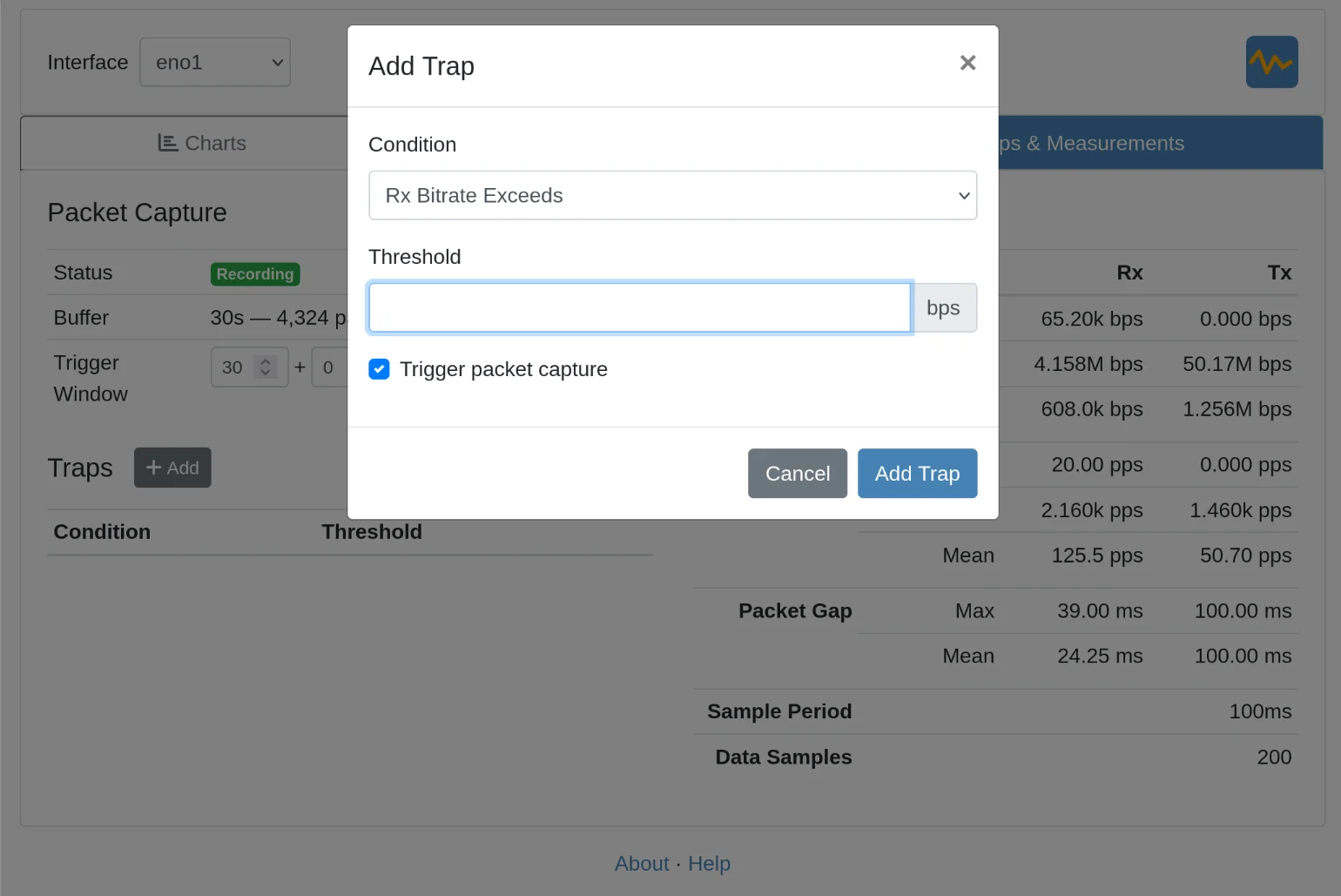
- Click + Add in the Traps panel
- Select a condition:
- Rx/Tx Bitrate Exceeds or Falls Below
- Rx/Tx Packet Rate Exceeds or Falls Below
- Packet Gap Exceeds
- Set the threshold value
- Enable Trigger packet capture to save packets when triggered
- Click Add Trap
You can create multiple traps with different conditions.
Trap Actions
When a trap triggers:
| Action | Description |
|---|---|
| Pause charts | Freezes the display so you can examine the event |
| Save capture | Writes the buffer to a pcap file |
| Visual alert | Highlights the triggered trap |
Use Cases
Catching intermittent glitches:
- Set threshold for inter-packet gap > 50ms
- Let it run overnight
- Come back to a pcap of exactly when and why
Validating fixes:
- Set a trap for the condition that was failing
- Run your updated system
- If no trigger, the fix worked
Stress testing:
- Combine with impairments: inject increasing delay
- Set trap for when application-level metrics degrade
- Find the exact threshold where your system fails
Capture Settings
| Setting | Description |
|---|---|
| Buffer size | How many seconds/packets to keep in memory |
| Pre-trigger | Seconds before the event to include |
| Post-trigger | Seconds after the event to include |
Export to Wireshark
Captured packets export as standard pcap files. Open them in Wireshark for:
- Protocol decoding
- Sequence analysis
- Timing measurements
- Root cause investigation
JitterTrap decides what's worth keeping. Wireshark tells you what happened.